Free Chrome extension · Prime Video, YouTube, Netflix, Disney+ & TED

Two languages. One screen.
Learn from every show you watch.

SubDuo shows two subtitle languages at once — the original on top, your language below. Double-click a word to see what it means, replay a line with one key, and keep what you learn in a built-in vocabulary list.

Uses the subtitles each site already provides · No account · Subtitles stay in your browser

Top: the original language Bottom: your language

Works on five services you already use

▶Prime Video ▶YouTube NNetflix DDisney+ TEDTED

On Amazon, Prime Video works on primevideo.com and the video pages of these stores:

primevideo.comamazon.comamazon.co.jpamazon.co.ukamazon.deamazon.framazon.itamazon.esamazon.nlamazon.inamazon.com.auamazon.com.bramazon.com.mx

One language at a time. Pause, rewind, look it up, lose the plot.

Watching in a foreign language usually means choosing between subtitles you can learn from and subtitles you can follow.
SubDuo ends the trade-off: both languages sit on screen together, unknown words are a double-click away, and any line comes back with a single key.

Stop switching subtitle tracks

Streaming players show one subtitle language at a time. SubDuo adds a second one — and the tools to learn from it.

Without SubDuo
  • One subtitle language at a time
  • Pause and switch tracks to check a line
  • Drag the seek bar back to hear a line again
  • Copy words into a dictionary tab, then forget them
With SubDuo
  • Two languages on screen at once, in one clean box
  • A, S or D jumps to the previous line, repeats it or moves on
  • Double-click a word: its meaning appears on the video, with the scene's line as the example
  • Save it with one click and review it later with flashcards

Four things you'll use every episode

Screens from the extension, shown in your language.
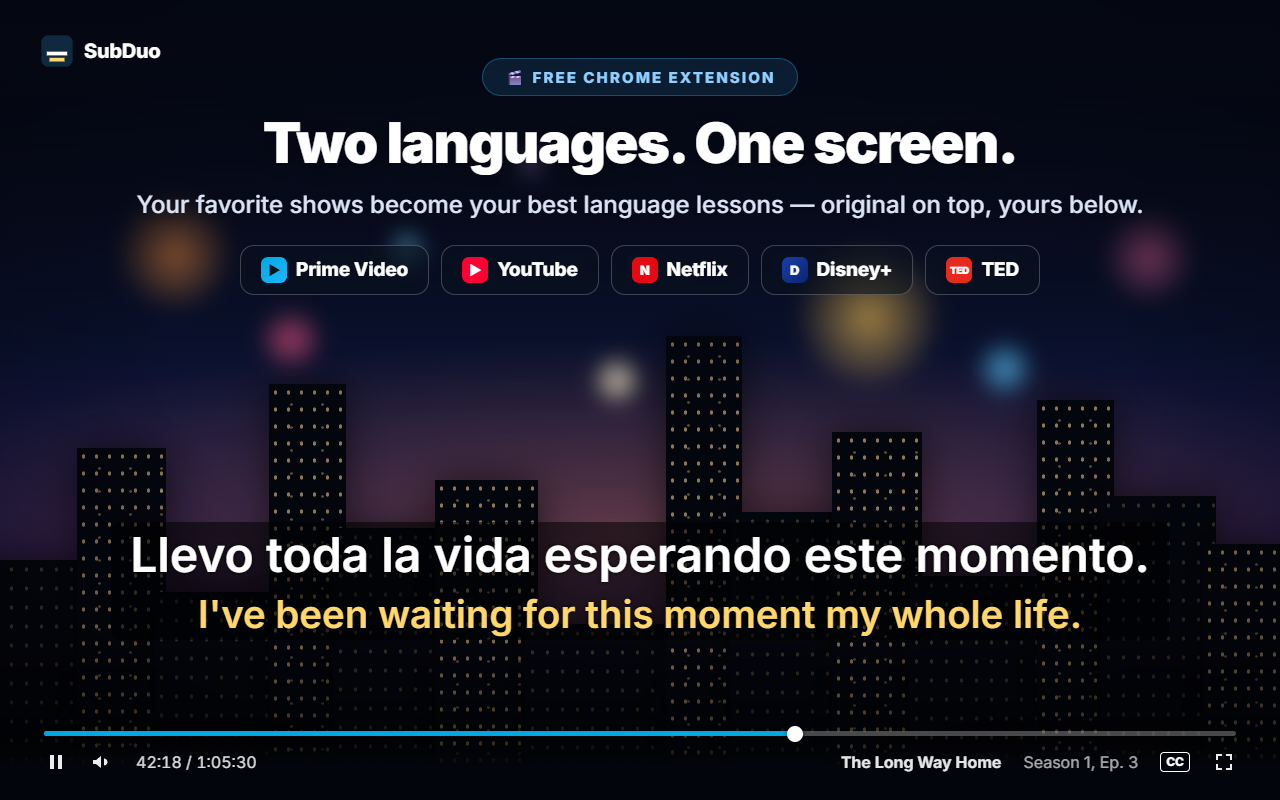
Two subtitle lines on a video: the original language on top and the viewer's language below
1

Two languages. One screen.

Pick any two of the subtitle tracks the title offers — the original on top, your language below. Drag the subtitles anywhere, scroll over a line to resize it, and right-click to change colors, transparency or blur.
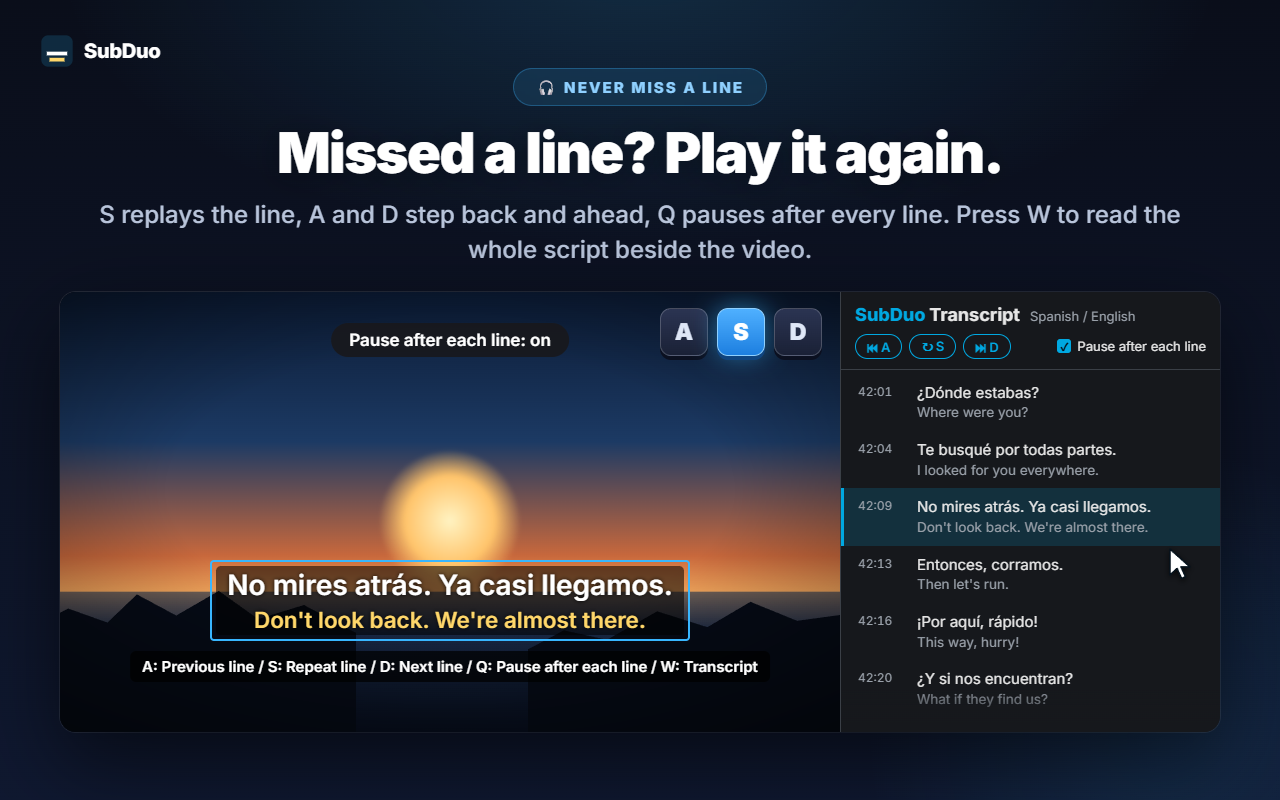
The A, S and D keys on the video, with the transcript in both languages in the side panel
2

Missed a line? Play it again.

Press S to repeat the line, A and D to step back and ahead, and Q to pause automatically after each line. Press W to open the transcript in Chrome's side panel — both languages, line by line — and click any row to jump there.
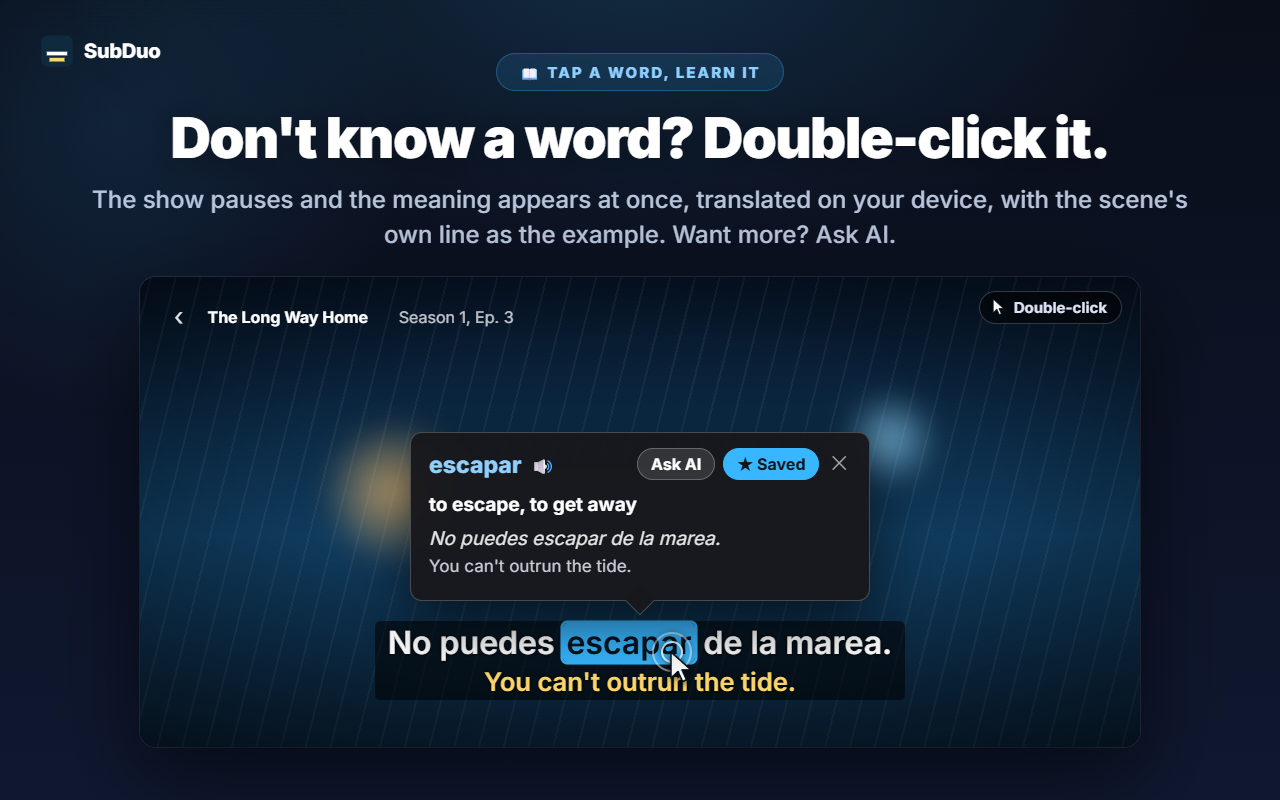
A word card on the video with its translation, the example line, Ask AI and Save
3

Don't know a word? Double-click it.

The video pauses and a card shows the meaning at once, translated on your device by Chrome's built-in translator, with the scene's own line as the example. Alt+drag selects a phrase. Tap “Ask AI” for the meaning in context, the pronunciation and an example sentence.
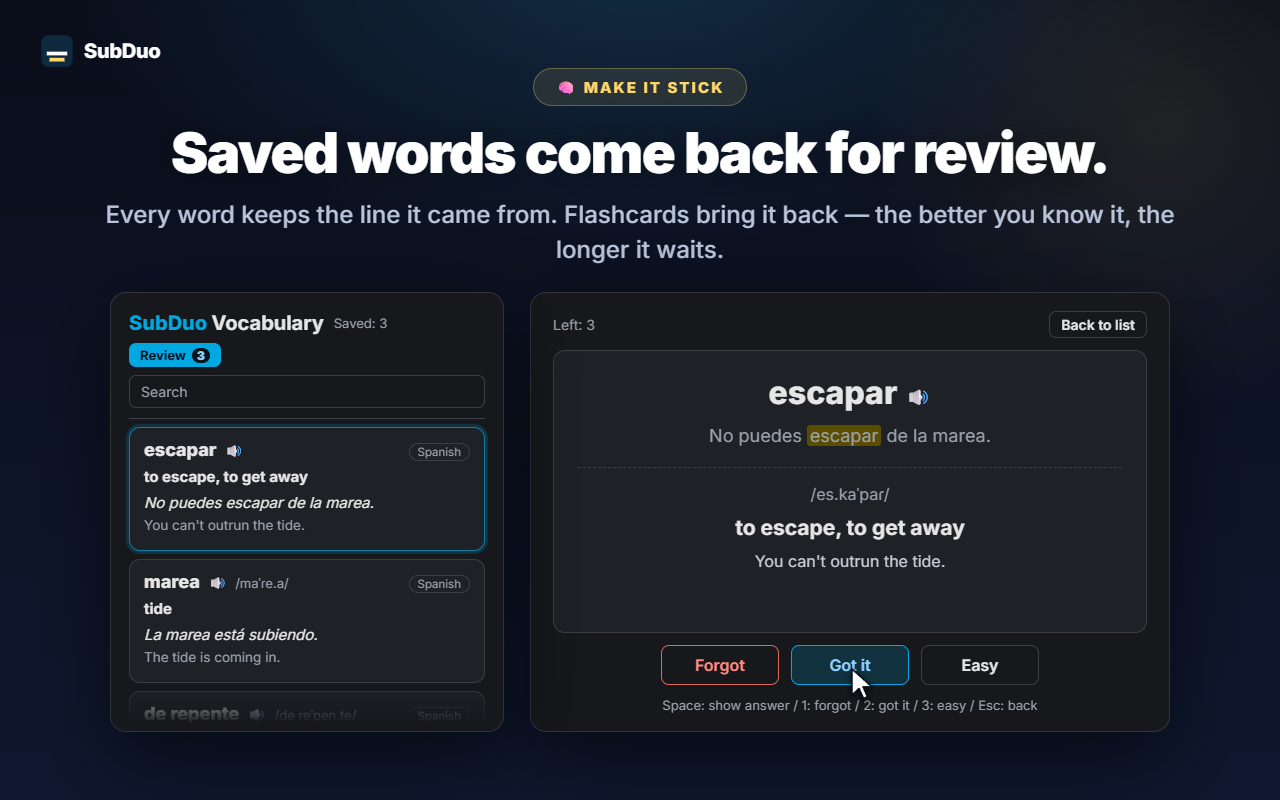
The vocabulary list next to a review flashcard with Forgot, Got it and Easy
4

Saved words come back for review.

Every saved word keeps the line it came from. Search and filter your vocabulary list, play the pronunciation, and review with flashcards — the better you know a word, the longer it waits before coming back.

SubDuo in action, in 40 seconds

Ready in three steps

No account, no setup screens. Install it and press play.

1

Add it to Chrome

Install SubDuo from the Chrome Web Store, then play a video on Prime Video, YouTube, Netflix, Disney+ or TED.

2

Pick two languages

Click the SubDuo icon and choose one subtitle language for the top line and one for the bottom. Only tracks the title offers are listed.

3

Watch and learn

Double-click words to look them up, press A, S or D to replay lines, and open your vocabulary list from the popup.

Everything in one small extension

Built for people who learn by watching — and want the subtitles out of the way until they need them.

Any two subtitle languages

Every track the site provides is detected when the video plays, including YouTube's auto-generated subtitles. Choose one per line, or hide one line.

Look up words and phrases

Double-click or Alt+click a word, or Alt+drag a phrase. Playback pauses and the translation appears on the video, done on your device.

Ask AI when you want more

The meaning in context, the pronunciation and an example sentence, in your display language. Up to 20 explanations a day, free.

Vocabulary list and review

Save words with one click, search them, filter by language and hear them with 🔊. Flashcards space out the words you already know.

Line-by-line practice

A for the previous line, S to repeat, D for the next. Q pauses after every line. Blur one line to test yourself, then point at it to check.

Transcript in the side panel

Every line in both languages beside the video. The current line is highlighted; click any row to jump to it. Press W to open it.

Adjust it on the video

Drag to move, scroll to resize a line, arrow keys to nudge, align left, center or right. Right-click for color, transparency and blur per line.

Each site remembers its setup

Large subtitles on YouTube, subtle ones on Netflix — settings are saved per site and synced through your Chrome.

20 display languages

Menus, translations and AI explanations use the display language you choose, which can differ from Chrome's language.

Your subtitles stay in your browser.

SubDuo reads the subtitle files each site already sends to your browser and draws them there. The only thing it sends out is a phrase you choose to ask AI about, together with its subtitle line.

🔒 Subtitles and settings stay local

Subtitles are parsed and drawn in your browser. Your settings, vocabulary list and viewing history are not sent to the developer. Word translations run on your device with Chrome's built-in translator.

📖 Only the phrases you ask about

When you tap “Ask AI”, the selected phrase, its subtitle line and the other line on screen, the language codes and a random device ID (for the daily limit) go to the SubDuo server, which asks OpenAI for the explanation. Your IP address is processed to run the service.

🚫 No account, no ads, no analytics

There is nothing to sign up for. The extension contains no advertising and no analytics.

🛡️ Minimal permissions

“storage” for settings and vocabulary, “scripting” to reconnect open tabs after updates, “sidePanel” for the transcript, and access to the five supported sites only.

Privacy policy

Before you install

1Subtitles are not machine-translated. SubDuo shows only the subtitle languages a title actually offers (on YouTube, auto-generated subtitles included). Translation is used only for the words you look up.
2Turn off the site's own subtitles. Otherwise the same line shows twice — SubDuo draws its own two lines.
3Netflix lists only some languages. Its player hands out a few subtitle tracks per title, depending on your account — SubDuo can only offer what it receives.
4On-device translation needs Chrome 138 or later. Chrome downloads a language pack the first time, and some languages aren't covered — then tap “Ask AI”. AI explanations can be wrong and are limited to 20 a day per device.
5It relies on each site's player. If a site changes how it delivers subtitles, detection may stop until SubDuo is updated. Live streams are unverified. Requires desktop Google Chrome 116 or later.

Frequently asked questions

Prime Video (primevideo.com and the video pages of Amazon stores), YouTube, Netflix, Disney+ and TED. On other pages the popup tells you the site isn't supported, and SubDuo doesn't run there.
No. Both lines are subtitle tracks the site already provides, so you can only pick languages the title offers. Translation is used only for the words and phrases you look up.
Double-click a word in the subtitles (or Alt+click it), or Alt+drag to select a phrase. Playback pauses and a card shows the on-device translation and the line it came from. Tap “Ask AI” for more, or Save to add it to your vocabulary list.
While SubDuo is showing subtitles, A jumps to the previous line, S repeats the current line, D moves to the next line, Q turns pausing after each line on or off, and W opens the transcript in the side panel.
Subtitles, settings and your vocabulary list stay in your browser. Only when you tap “Ask AI” are the selected phrase, its subtitle context, the language codes and a random device ID sent to the SubDuo server, which uses OpenAI to write the explanation. See the privacy policy for details.
Yes. No sign-up and no paid plan. AI explanations are limited to 20 a day per device. A subscription to the streaming service itself is still needed where it requires one.
The site's own subtitles are still on. Turn them off in the player's subtitle menu — SubDuo draws its own two lines.
Yes. The subtitles live inside the player, so they stay in place and scale with the video in fullscreen.

Watch in two languages tonight.

Add to Chrome — free

Installs from the Chrome Web Store in seconds